

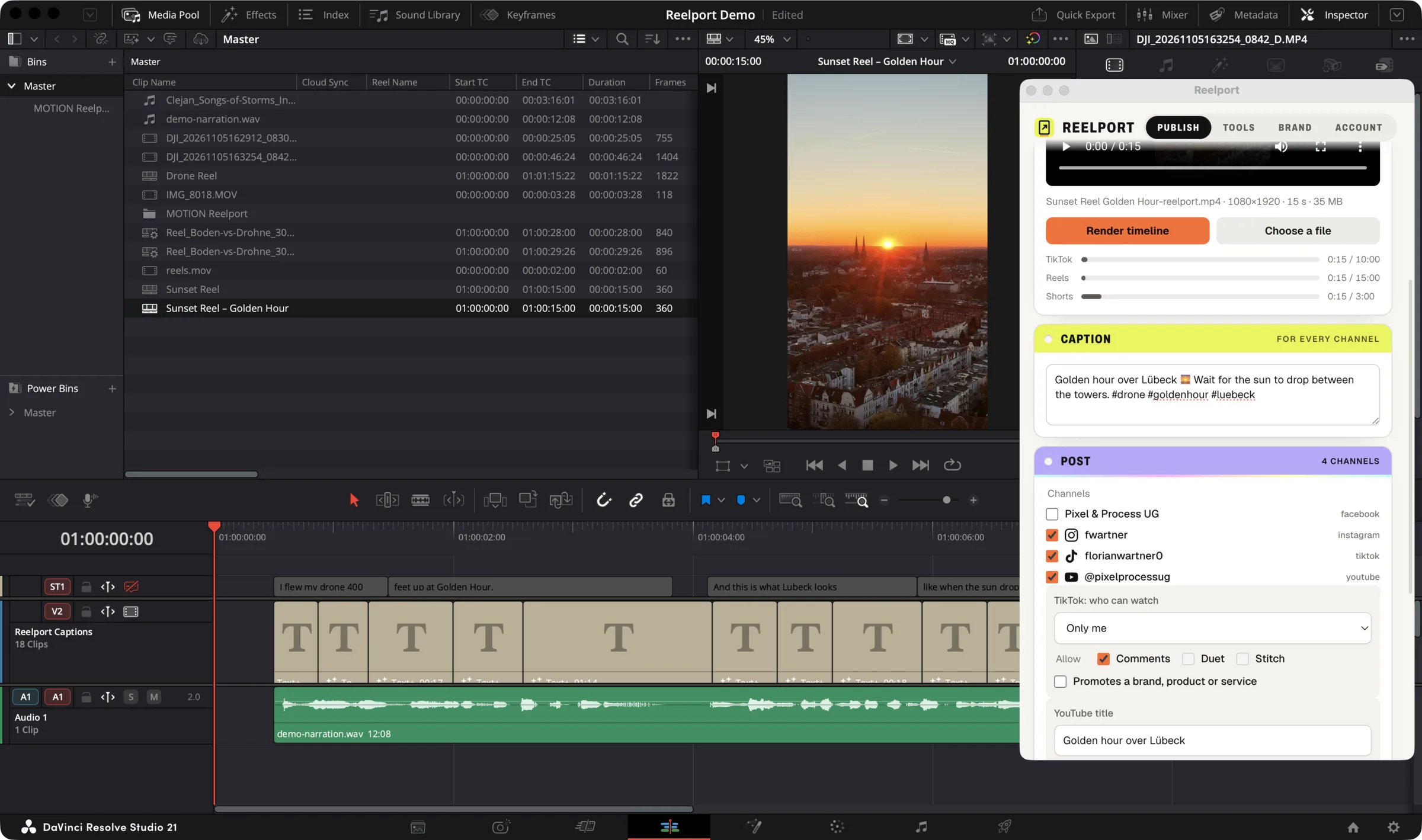
From the timeline to every channel
The Publish tab of the Reelport panel, in four steps. Screenshots from DaVinci Resolve Studio 21.
- 01
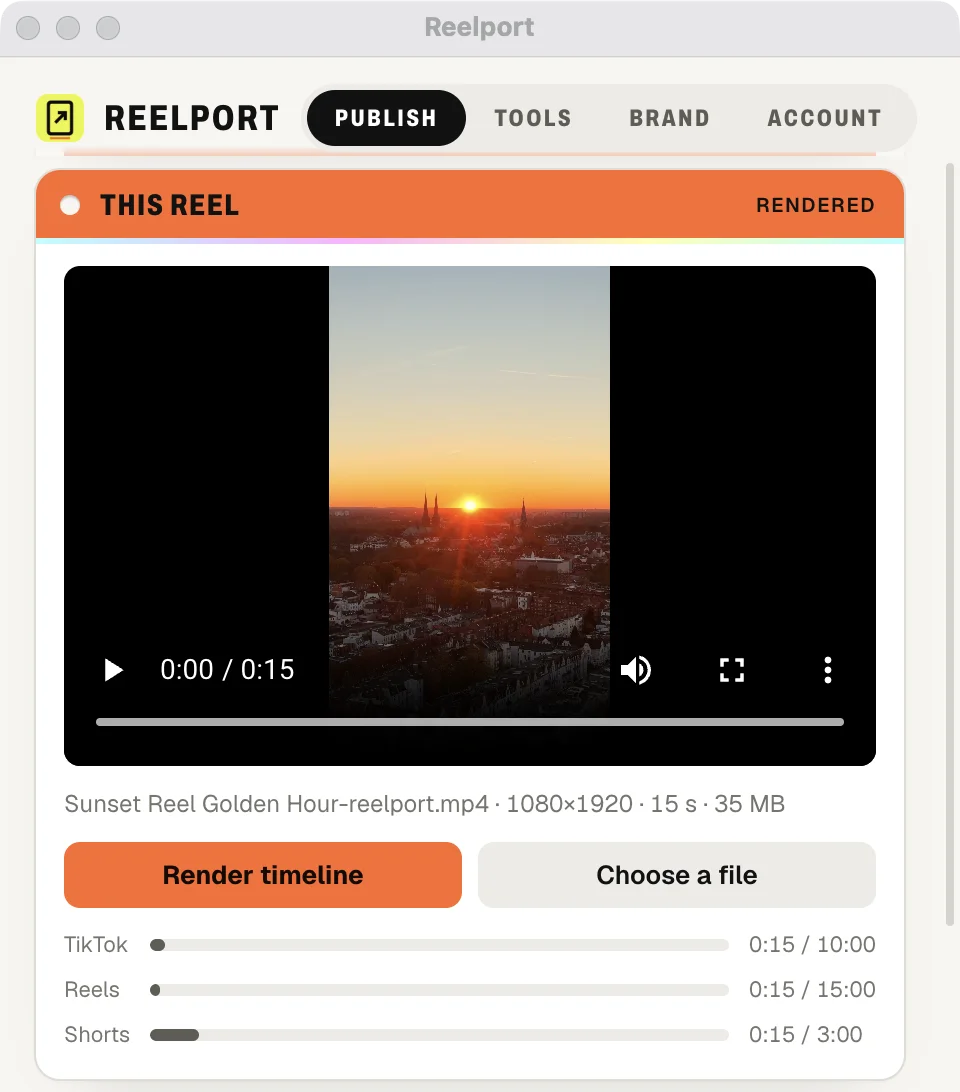
Render the timeline
Open the Publish tab and click Render timeline. Reelport renders the timeline you are on as a vertical 1080 × 1920 video and checks its length against each platform: up to 10 minutes on TikTok, 15 on Reels, 3 on Shorts. Already exported? Choose a file instead.
- 02
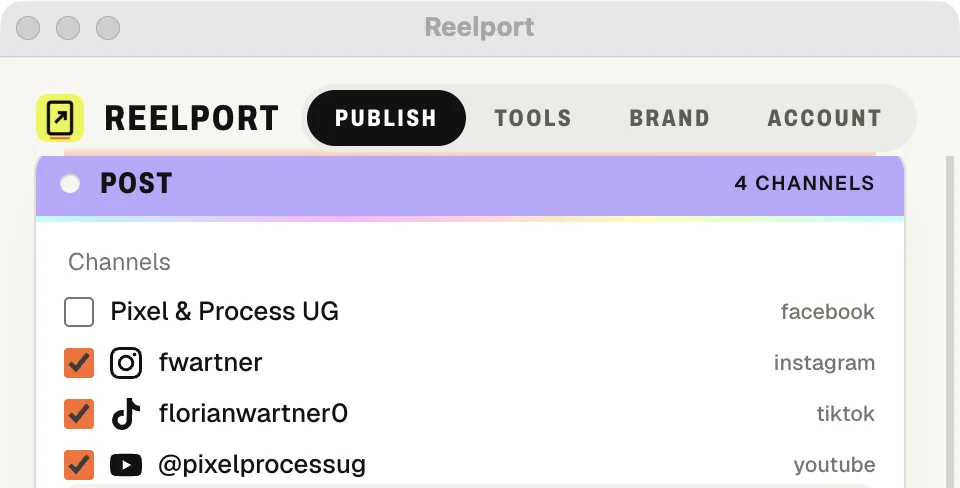
Pick your channels
Sign in to reelport.io once with a code (see below). The channels you connected there are listed in the panel. Tick the ones this video goes to.
- 03
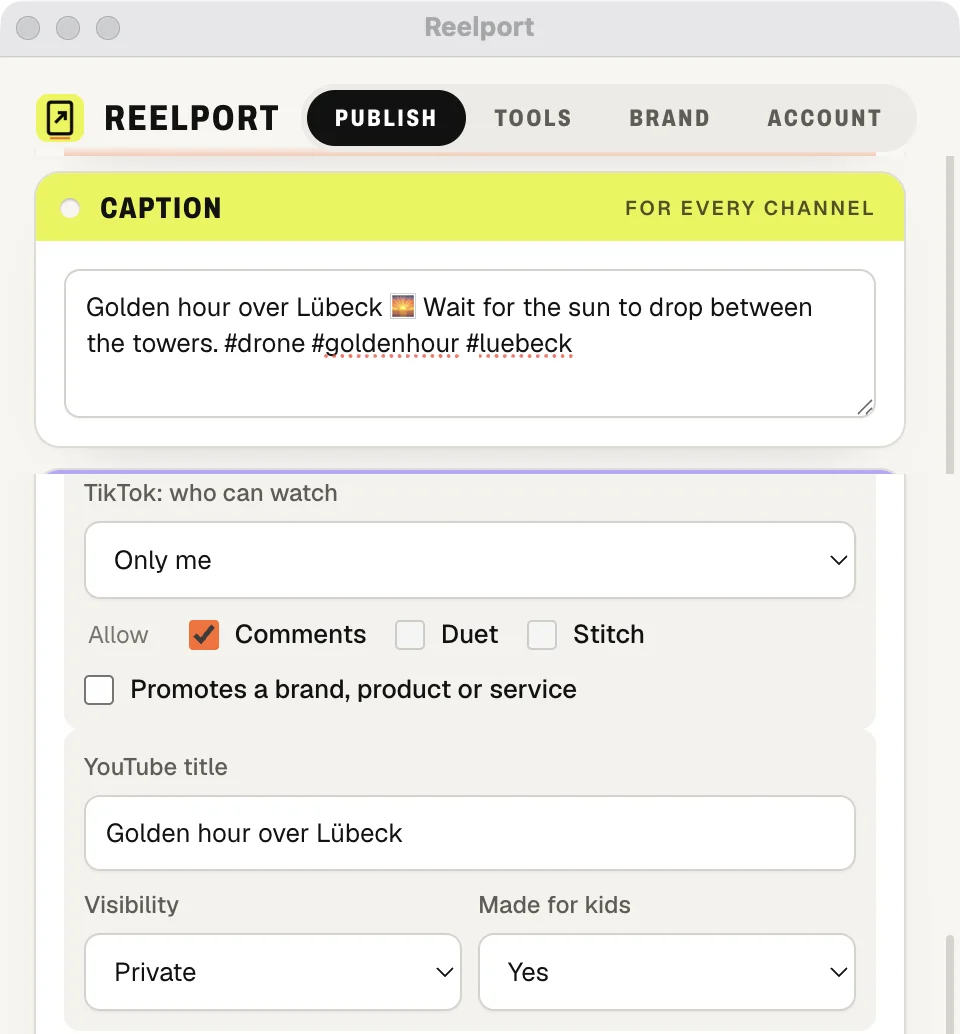
Write the caption, set the privacy
One caption for every channel. Underneath, each platform asks what it has to know: who can watch on TikTok and whether comments, duets and stitches are allowed; the YouTube title, its visibility and whether it is made for kids.
- 04
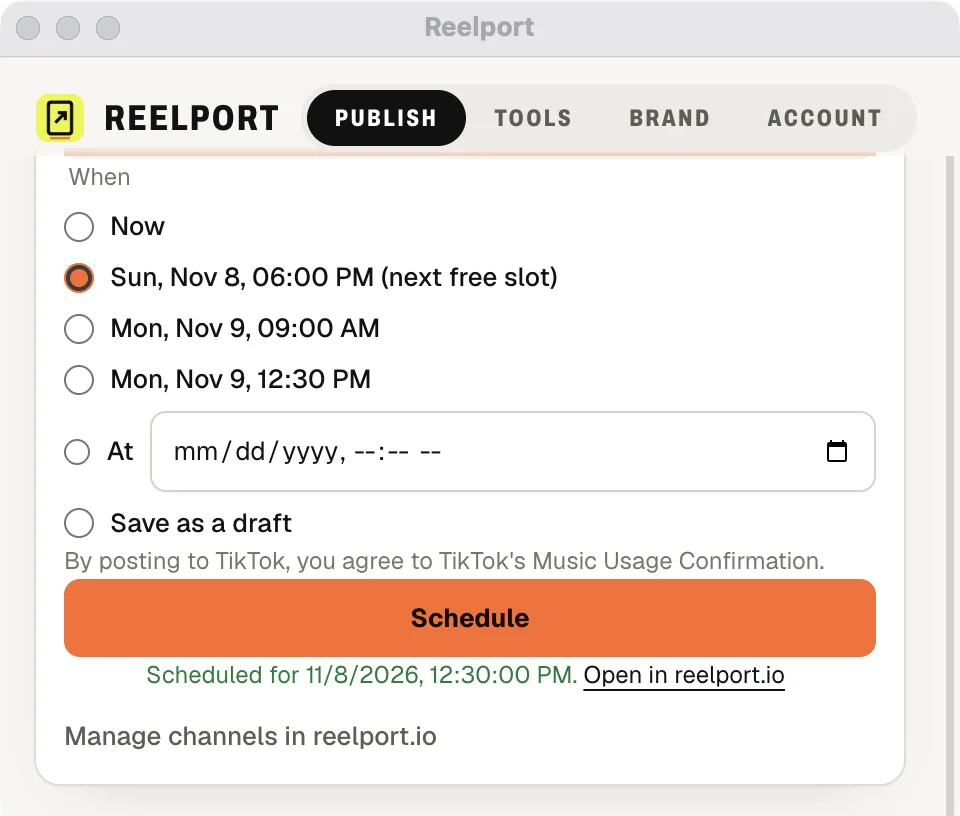
Publish now or schedule it
Post now, take one of the next free slots, choose an exact time or save a draft. The post lands in your reelport.io queue, which publishes it on time and retries the hiccups.
Sign in with a code, not a password
The plugin and Claude use the device sign-in you know from TV apps (OAuth 2.0 device authorization, RFC 8628).
- 01
Reelport shows a code
In Resolve (or in Claude) you choose to sign in to reelport.io. Reelport shows a short code like BCDF-GHJK and opens reelport.io/device in your browser.
- 02
You confirm it in the browser
Sign in to reelport.io as usual (or create an account), check that the code matches, pick the team the plugin should post for and click Connect Reelport. Or Decline.
- 03
Reelport is signed in
The plugin receives its own token for that team. No password ever touches Resolve. A code is valid for 15 minutes and can be used once.
The token shows up in reelport.io under Settings › API tokens, marked “Signed in from Reelport plugin”. Revoke it there and the plugin is signed out at once.
What the plugin does with reelport.io
Everything below runs on the same public API you can use yourself.
- Schedule the render
- Pick the channels and a time from inside Resolve. The render uploads straight to reelport.io and lands in your queue as a normal post.
- Next free slots
- Don’t want to pick a minute? Take the next free slot: 09:00, 12:30 or 18:00 in your timezone, skipping slots that already have a post within 30 minutes.
- Variations over several days
- Cut several variations of a reel and spread them over the coming free slots, one post each. How many variations a reel can have depends on your plan.
- Same rules, same board
- Posts from the plugin go through the same checks as the composer, TikTok’s required choices included, and show up in the same queue and calendar, with the same approvals, retries and Insights.
Reelport for Claude
Say it in a sentence. reelport.io still applies every platform rule.
The Reelport Claude extension signs in with the same device code. It can list your channels, find the next free slots, schedule a render and check how a post did, channel by channel.
Where a platform needs an answer (who can watch on TikTok, made for kids on YouTube), Claude has to give it; reelport.io refuses a post that leaves it out and says which field is missing.
Example request
“Render this timeline and schedule it to TikTok and YouTube for Thursday’s first free slot.”
Example request
“Did yesterday’s 18:00 post go out on Instagram?”
Getting the plugin
Download it here with your reelport.io account. reelport.io is in private beta: invited accounts get a 7-day trial with every feature, no card needed. reelport.io also works without the plugin.
The plugin needs DaVinci Resolve Studio 20 or later on macOS or Windows 10/11. Claude can also edit inside your own CapCut desktop project (CapCut 9.x, macOS or Windows): see the docs. The download is one zip with the Resolve panel and the Claude extension: unzip it and double-click install.command (macOS) or install.cmd (Windows). Which of its features and presets you can use with reelport.io is set by your reelport.io plan.

Edit in Resolve. Publish everywhere.
Private beta: join the waitlist, invited accounts get 7 days free. Hosted in the EU.
Join the waitlist